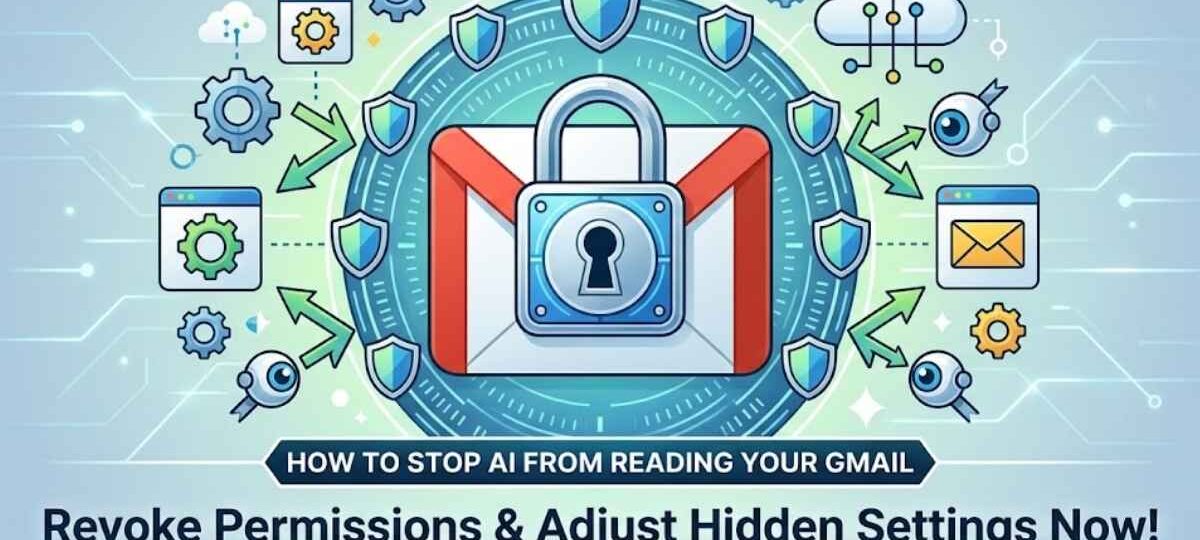
In 2026, email privacy has become one of the biggest digital concerns. Millions of users now rely on automation tools, AI assistants, and integrations that connect directly to Gmail. While these tools are powerful, they also raise an important question: Who can actually read your email data?
If you have ever connected your inbox to automation platforms, browser extensions, or AI tools, there is a chance your data is being accessed through permissions you forgot about.
The good news is that you can stop AI from reading your Gmail by adjusting a few hidden settings inside your Google account.
In my experience helping businesses build automation systems using tools like Zapier and AI APIs, most people are shocked when they discover how many apps still have permission to access their inbox.
This guide shows exactly how to lock down your Gmail privacy without needing any technical skills.
Why AI Tools Can Access Your Gmail in the First Place 🔍
AI does not magically read your Gmail. It only gains access when you authorize an app, integration, or service.
AI reads Gmail only when a user grants API permission through Google OAuth. The app then receives token-based access to email metadata or content. For example, when someone connects Gmail to an automation tool that summarizes emails using AI.
When you click “Allow access to Gmail” while connecting an app, you are granting an API permission.
That permission can allow the app to:
- Read emails
- Send emails
- Analyze inbox data
- Process messages using AI models
Therefore, controlling those permissions is the key to stopping AI from reading your inbox.
Many people assume Gmail privacy issues come from hackers.
In reality, most privacy leaks come from apps you approved yourself.
The Hidden Google Settings That Control AI Data Access ⚙️
Google provides several privacy settings that control how your data is used for AI training, advertising, and third-party integrations.
However, these settings are scattered across different menus.
Below is a simplified overview of the most important controls.
| Google Setting | What It Controls | Why It Matters for AI Privacy |
|---|---|---|
| Web & App Activity | Stores search and interaction data | AI models may use this behavior data |
| Third-Party App Access | Shows apps connected to Gmail | Removes AI tools reading emails |
| Gmail Smart Features | Enables automated email analysis | Disabling limits automated processing |
| Ads Personalization | Uses data for ad targeting | Reduces profiling based on email signals |
| Google Workspace AI Controls | Governs AI assistant features | Prevents AI features analyzing messages |
Understanding these settings is the first step toward controlling your digital privacy.
Next, we will walk through the exact process to lock them down.
Step-by-Step: How to Stop AI from Reading Your Gmail 🔐
Stopping AI access to Gmail means revoking API permissions and disabling automated analysis features. You remove connected apps and restrict Google’s internal AI features. For example, removing an email summarization tool instantly prevents it from scanning messages.
Follow these steps carefully.
Step 1: Check Apps That Can Access Your Gmail
First, open your Google Account settings.
Navigate to Security → Third-party apps with account access.
You will see a list of apps connected to your Gmail.
This list often includes:
- Automation tools
- AI email assistants
- Productivity extensions
- CRM integrations
In my experience auditing inbox permissions, most users find 10+ apps still connected.
If you no longer use one, remove it immediately.
Removing the app instantly blocks API access.
Step 2: Disable Gmail Smart Features
Gmail has built-in automation that analyzes emails to power smart replies and AI features.
Go to Gmail Settings and locate Smart Features and Personalization.
Turn off:
- Smart Compose
- Smart Reply
- Personalization across Google products
These features rely on machine analysis of message content.
Disabling them reduces automated processing of your inbox.
Step 3: Turn Off Google Data Training Signals
Google may use interaction signals from services to improve AI systems.
Navigate to Google Data & Privacy → Activity Controls.
Turn off:
- Web & App Activity
- Personalized Ads
- Google Assistant activity (if linked)
While Gmail content itself is not used directly for ad training, behavioral signals connected to your email activity can still be analyzed.
Reducing these signals strengthens privacy.
Step 4: Review Gmail Add-Ons and Extensions
Many Gmail privacy leaks come from browser extensions rather than apps.
Open your browser extension manager and look for tools that integrate with Gmail.
Examples include:
- Email productivity plugins
- AI writing assistants
- Sales automation tools
- CRM connectors
Each extension may read inbox content to perform its features.
If you do not absolutely need it, remove it.
Step 5: Use Google Advanced Protection (Optional)
For maximum privacy, Google offers Advanced Protection.
This security mode limits which apps can connect to your account.
It blocks risky integrations and restricts access to verified applications.
While originally designed for journalists and activists, it now helps anyone who wants stronger inbox protection.
How Gmail API Access Actually Works (Explained Simply) 🧠
The Gmail API is a secure gateway that allows software to interact with inbox data. Apps request permission through OAuth tokens, then access messages via API endpoints. For example, an AI summarization tool fetches new emails and sends them to an AI model.
When you connect Gmail to an automation platform, this process happens:
- You click Connect Gmail
- Google asks you to approve permissions
- The tool receives a secure token
- The tool reads inbox data through the API
This is the same system used by automation tools and AI workflows.
The important detail is this:
The API cannot access anything without your explicit permission.
Revoking that permission immediately stops access.
The Zapier + AI Example (What Really Happens) 🤖
Many automation tutorials show how to connect Gmail to AI tools.
For example, you might build a workflow that:
- Detects new Gmail messages
- Sends them to an AI model
- Generates a summary or reply
This works because Gmail triggers the automation.
Then the email content gets passed to an AI model through an API.
When I tested this setup during an automation project, the workflow looked like this:
Gmail → Automation Tool → AI Model → Output
Once the automation runs, the AI processes the message content.
However, the critical detail is this:
The AI never accesses Gmail directly.
It only processes data that the automation tool sends.
Therefore, removing the automation integration completely stops that flow.
Signs an AI Tool May Be Reading Your Gmail 🚨
Most people only realize their inbox is connected to AI tools after noticing unusual features.
Common indicators include:
- Automatic email summaries appearing in dashboards
- CRM tools displaying email conversations
- AI assistants drafting replies automatically
- Productivity apps analyzing inbox behavior
These features require message access.
If you see them, an app likely has Gmail API permissions.
The solution is not panic.
Instead, review and revoke the app’s permissions.
Pro-Level Privacy Insight Most People Miss 💡
Here is something even experienced users overlook.
Removing an app does not always delete stored data.
Many services store historical email data in their own systems.
In my experience auditing SaaS privacy policies, some platforms keep cached message content even after access is revoked.
Therefore, a complete privacy cleanup includes:
- Removing the app from Google
- Deleting your account with that service
- Requesting data deletion if necessary
This step ensures your email history is not stored externally.
Gmail Privacy Best Practices for 2026 🛡️
Inbox security is evolving rapidly because AI automation is now mainstream.
The smartest approach is proactive control.
A strong Gmail privacy routine includes:
- Reviewing connected apps every 3 months
- Limiting inbox integrations to essential tools
- Removing unused extensions
- Disabling unnecessary smart features
- Using strong Google account security
These simple habits dramatically reduce privacy risks.
Most importantly, they ensure you stay in control of your data.
FAQs
Can AI actually read my Gmail emails?
Yes, AI can read Gmail emails only if an app you authorized accesses them through the Gmail API. This happens when you connect automation tools, CRM systems, or AI assistants. If you remove the app’s permission inside your Google account, the AI loses access immediately.
Does Google use Gmail messages to train AI models?
Google states that consumer Gmail content is not directly used to train advertising AI systems. However, Gmail features such as Smart Compose analyze message patterns to improve functionality. Disabling smart features and activity controls reduces automated analysis of your email interactions.
How do I see which apps can read my Gmail?
You can check Gmail access by opening your Google Account Security settings and reviewing “Third-party apps with account access.” This page lists every service connected to Gmail. Removing any app instantly revokes its API permission to read inbox data.
Are Gmail AI assistants safe to use?
Most Gmail AI assistants are safe if they use secure OAuth authentication and follow privacy policies. However, they still require permission to read email content to function. Therefore, only use trusted services and remove access if you stop using the tool.
Will deleting a connected app stop AI from accessing old emails?
Deleting the app stops future access immediately, but it does not always erase previously processed data. Some platforms may retain cached email information in their systems. For complete privacy, delete your account with the service and request data removal if needed.
See Also: Password Hack: Google, Apple, Meta – Protect Your Identity Now