An EDB file holds an entire Exchange mailbox database, and without a working Exchange Server you cannot open it. That becomes a real problem the moment a server dies, a company migrates to Microsoft 365, or a legal request lands for mail from a system nobody runs anymore.
Stellar Online EDB Converter is built for exactly that moment. It runs in your browser, needs no Exchange Server and no installation, and converts offline EDB files to PST for free up to 500 MB. This review covers how it works, what the free and Premium tiers really include, how it handles privacy, where it stops being the right tool, and how it compares with Stellar’s desktop edition.
Quick verdict: The online converter is an excellent first move for small, non-sensitive EDB files and one-off recoveries. Large databases, bulk migrations, regulated data, and anything that must never leave your network belong on the desktop edition.
At a Glance
| Best for | Small offline EDB files, quick recoverability checks, one-off mailbox extraction |
| Free tier | EDB up to 500 MB, one file, no credit card |
| Premium | EDB up to 5 GB, $99.99, one EDB file (listed for 10 mailboxes) |
| Output | PST files delivered in a zip archive |
| Installation | None (browser only) |
| Exchange Server required | No |
| Biggest strength | Free preview and conversion with zero setup |
| Biggest limit | Size caps, single-file processing, and uploading data to a third party |
| Editorial score | 4.2 / 5 (online), 4.5 / 5 (desktop) |
What Is Stellar Online EDB Converter?
Stellar Online EDB Converter is a free, browser-based service that extracts mailbox data from offline EDB files without an Exchange Server. It reads emails, calendars, contacts, notes, and tasks, and it keeps the original folder structure so the result looks like the mailbox your users remember.
You upload an EDB file, preview the mailboxes, folders, and item counts in your browser, and then download the converted data as PST files inside a zip archive. Outlook can import those PST files directly.
Key features:
- Converts EDB files up to 500 MB for free, with no credit card
- Needs no Exchange Server and no software installation
- Previews mailboxes, folder structure, and item counts before you download
- Delivers converted mailboxes as PST files in a zip
- Uses an encrypted connection for upload and conversion
- Offers a Premium tier for files up to 5 GB and a desktop edition for unlimited size
Try it here: Stellar Online EDB Converter
Free vs Premium: What You Actually Get
The two online tiers differ mainly in file size and price.
| Feature | Free | Premium |
|---|---|---|
| Maximum EDB file size | 500 MB | 5 GB |
| Price | $0 | $99.99 |
| Files per conversion | One EDB file | One EDB file |
| Preview before download | Yes | Yes |
| Server-side deletion of your data | Within 24 hours | Within 48 hours |
| Output | PST in zip | PST in zip |
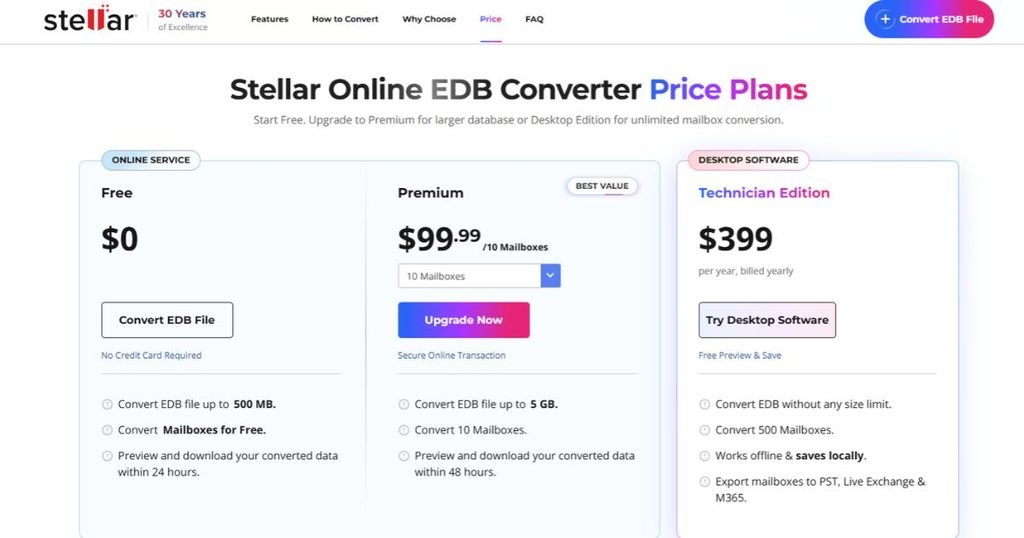
A common misreading worth correcting. The 24-hour and 48-hour figures on Stellar’s page describe how long your data stays on its servers before permanent deletion. They are not a promise that conversion takes a day. Treat them as your download window: grab your files promptly, because they will be gone afterwards.
On Premium pricing. Stellar’s pricing page shows Premium at $99.99 and lists it for 10 mailboxes in a single EDB file up to 5 GB. If you have several databases, each one is a separate conversion, so costs add up quickly. For multi-database work, the desktop edition is usually cheaper and simpler.
Hands-On Demo: Converting an EDB File Online
The online converter turns an offline EDB into importable PST files in five stages. Here is the full process, with what to check at each stage.
- Upload the file. Open the converter page (sponsored link) and choose your EDB. For the free tier it must be under 500 MB. Always upload a copy, never your only original. Upload time depends on file size and your connection, so keep the browser tab open until it finishes.
- Let it scan. After upload, Stellar reads the database and builds the mailbox list. A short wait is normal, and larger files take longer. You do not need an Exchange Server at any point.
- Preview the data. This is the most valuable step. Browse the mailboxes, the folder tree, and the item counts. Open the Inbox, Sent Items, Calendar, and Contacts folders and compare counts with what you expect. If the numbers look far too low, stop here rather than converting.
- Convert. Start the conversion. A file under 500 MB converts on the free plan. A larger file, up to 5 GB, prompts you to upgrade to Premium at $99.99.
- Download the output. Your mailboxes arrive as PST files inside a zip archive. Download promptly, because Stellar deletes files from its servers within 24 hours (Free) or 48 hours (Premium). Unzip, then import into Outlook through File > Open & Export > Import/Export, or open the PST directly as a data file.
Expert tip: treat the preview as a pass/fail gate. If it shows what you expected, convert with confidence. If it does not, check the EDB’s shutdown state (see the section below) before spending time or money on conversion.
Where the Online Version Stops
The online converter is deliberately limited, and it is better to know the edges before you start.
- File size: 500 MB free, 5 GB on Premium. Larger EDB files cannot be handled online at all.
- One EDB per run, so multi-database projects mean repeated uploads.
- PST output only, with no direct export to Exchange or Microsoft 365.
- Upload required, which rules it out for confidential or regulated mail.
This matters in practice because production Exchange databases are routinely far larger than 5 GB. The online tool is the right first move for small files, not a replacement for a full migration tool.
Need More? Switch to the Desktop Version
If your file exceeds the online limit, you can switch to the desktop version. Stellar Converter for EDB (sponsored link) runs on your own Windows machine, handles EDB files of any size, and keeps the data local. The next sections cover what it offers and how a conversion runs from start to finish.
Before You Convert: Check the EDB’s Health
Most failed conversions come from the source file, not the converter. An EDB in a dirty shutdown state is missing transaction log data and may convert incompletely.
If you have access to the Exchange tools, eseutil /mh <path to EDB> reads the database header and tells you whether the state is Clean Shutdown or Dirty Shutdown. A clean database is the best case. A dirty one may need soft recovery with the matching log files before conversion. Hard repair (eseutil /p) is a last resort because it can discard data, so always run it on a copy.
If you cannot run Exchange tools at all, that is precisely the gap a converter like Stellar’s is designed to fill, since it reads the database directly without a running server.
Security and Privacy: The Part Most Reviews Skip
Uploading a mailbox database to any web service means trusting a third party with that data. A mailbox can contain contracts, HR matters, financial records, and personal information, so this deserves a proper look.
What Stellar says it does:
- Uses an encrypted connection to upload and convert files
- Permanently deletes your data from its servers within 24 hours (Free) or 48 hours (Premium)
- Publishes a privacy policy you can review before uploading
What you still need to decide:
- Does your organisation’s policy, contract, or regulation allow mail to leave your network?
- Does the data include special categories such as health or legal-privilege material?
- Do you need a documented chain of custody for legal or compliance purposes?
For a small file of low-sensitivity mail, the online route is reasonable. For regulated or privileged data, process the file locally with the desktop edition so it never leaves your machine. Our guide to data protection best practices explains how to assess this kind of risk.
Stellar Converter for EDB (Desktop Edition)
The desktop edition targets administrators who handle large databases or many mailboxes. According to Stellar, it has no file-size limit, so the 500 MB and 5 GB online caps do not apply, and it works with both online (mounted) and offline EDB files.
What the desktop edition adds, based on Stellar’s published information:
- No limit on EDB file size
- Export to PST, plus other formats such as EML, MSG, RTF, HTML, and PDF
- Direct export of mailboxes to a live Exchange Server or Microsoft 365
- Support for a wide range of Exchange Server versions, including legacy and decommissioned servers
- Archive mailbox and public folder recovery
- Automatic splitting of very large PST output into smaller parts (Stellar cites a 45 GB maximum per PST)
- A free demo that previews mailbox items before you buy
- Local processing, so the data never leaves your machine
System requirements (from Stellar’s product page): 64-bit Windows 11, 10, 8.1, or 8, and Windows Server 2022, 2019, 2016, or 2012; an Intel-compatible x64 processor; 8 GB of memory recommended; and about 250 MB of free disk space. Requirements can change by version, so confirm on the official product page (sponsored link) along with current pricing and edition differences before you buy.
Who it suits: administrators decommissioning an Exchange environment, consultants running migrations, and legal or compliance teams who need local processing and flexible export formats.
Desktop Walkthrough: Stellar Converter for EDB
The desktop edition follows the same logic as the online tool, with more control. Here is the run from start to finish.
- Select the EDB. Launch the software and choose your offline EDB file, or use the option for a mounted (online) database. Browse to the file you copied from the old server or backup.
- Scan the EDB. Start the scan. The software reads the database directly, so no Exchange Server is needed. Progress is shown on screen, and larger databases take longer.
- Preview mailboxes and data. When the scan ends, a tree of mailboxes and folders appears. Click through folders to read emails, calendar entries, contacts, and tasks before you export anything.
- Select the required mailboxes. Tick only the mailboxes you need. This is a real advantage over the online version: you avoid exporting a whole database when you only need a few users.
- Export and save. Choose the output (PST is the usual choice, with other formats available per Stellar) and a destination folder with enough free space. The free demo previews items but does not save them, so saving requires an activated licence.
After export, import the PST into a test Outlook profile and compare folder and item counts with the preview before you retire the source EDB.
Online vs Desktop: Which Should You Use?
| Situation | Better choice |
|---|---|
| EDB file under 500 MB, one-off need | Online (free) |
| EDB file between 500 MB and 5 GB, single file | Online Premium |
| EDB file over 5 GB | Desktop |
| Many mailboxes or databases | Desktop |
| Migration to live Exchange or Microsoft 365 | Desktop |
| Export to EML, MSG, PDF, or HTML | Desktop |
| Confidential, regulated, or privileged mail | Desktop |
| You only want to check if the data is recoverable | Online (free preview) |
A sensible workflow for many teams: try the free online preview first to confirm the data is intact, then move to the desktop edition for anything that outgrows the free tier or needs tighter control.
Common Problems and How to Handle Them
| Problem | Likely cause | What to try |
|---|---|---|
| File rejected as too large | EDB is over 500 MB on the free tier | Move to Premium (up to 5 GB) or the desktop edition |
| Preview shows fewer items than expected | Dirty shutdown state or partial corruption | Check database state with eseutil /mh, then retry on a clean or recovered copy |
| Upload keeps failing | Unstable connection or very large file | Use a wired connection, retry, or switch to desktop for local processing |
| Download link is gone | Data deleted after the 24 or 48 hour window | Re-run the conversion and download promptly |
| PST will not import | Outlook version or profile conflict | Import into a clean test profile and confirm Outlook is up to date |
| Need formats other than PST | Online output is PST only | Use the desktop edition for EML, MSG, PDF, or HTML |
Pros and Cons
Pros:
- Free conversion for EDB files up to 500 MB, no credit card
- No Exchange Server or installation required
- Browser preview of mailboxes, folders, and item counts before download
- Keeps the original folder structure
- Encrypted upload with scheduled server-side deletion
- Clear upgrade path to Premium and then to an unlimited desktop edition
Cons:
- Free tier is capped at 500 MB and one file per run
- Premium costs $99.99 and is still limited to 5 GB and a single EDB file
- Uploading to a third party is a poor fit for sensitive or regulated mail
- Online output is PST only; other formats need the desktop edition
- Download window is short (24 or 48 hours), so you must act promptly
Who Should Use It?
IT administrators retiring an Exchange Server will get the most from the desktop edition. Unlimited file size, flexible formats, and live Exchange or Microsoft 365 export suit real migrations.
Small businesses with a single small EDB file can try the free online converter first. It costs nothing, and the preview shows whether the data is intact before any download.
MSPs and consultants handling many client databases will save time and money on the desktop edition rather than paying per file online.
Legal and compliance teams should favour local processing. Keeping data off third-party servers simplifies chain-of-custody questions.
If you manage Exchange environments, pair any recovery workflow with solid endpoint protection. See how endpoint detection tools help prevent data breaches.
Editorial Scorecard
Scores reflect Stellar’s published features, pricing, and independent coverage, not a lab benchmark.
| Category | Score |
|---|---|
| Ease of use | 4.8 / 5 |
| Value (free tier) | 4.8 / 5 |
| Value (Premium) | 3.6 / 5 |
| Capacity and flexibility (online) | 3.4 / 5 |
| Privacy and control (online) | 3.5 / 5 |
| Desktop edition overall | 4.5 / 5 |
| Online converter overall | 4.2 / 5 |
Final Verdict
Stellar Online EDB Converter does one job well: it turns a small offline EDB file into an importable PST without a server and without an installation. The free tier is a genuinely useful way to check recoverability at no cost, and the in-browser preview removes most of the guesswork.
The trade-offs are clear and fair: file-size caps, one file at a time, PST-only output, and the privacy question that comes with any upload. Premium makes sense for a single mid-size file, but it is not the best answer for multi-database work.
For files over 500 MB, bulk jobs, or sensitive data, choose Stellar Converter for EDB on the desktop. Whichever route you take, test on a copy of your EDB file and keep the original untouched until the recovered data is verified.
Our rating: 4.2 / 5 for the online converter and 4.5 / 5 for the desktop edition.
FAQs

Can I open an EDB file without Exchange Server?
Yes. An EDB file normally needs Exchange to read it, but conversion tools extract the mailbox data directly. Stellar Online EDB Converter does this in the browser and outputs PST files that Outlook can import.
Is Stellar Online EDB Converter really free?
Yes, for one EDB file up to 500 MB, with no credit card required. Larger files, up to 5 GB, need Premium at $99.99. Anything bigger needs the desktop edition.
What is the file size limit for converting EDB to PST online?
The free tier handles files up to 500 MB. Premium raises the limit to 5 GB. The desktop edition has no file-size limit.
How long does the converted file stay available?
Stellar states that your data is permanently deleted from its servers within 24 hours on the free tier and 48 hours on Premium, so download your PST files promptly.
Does the converter keep the folder structure?
Stellar states that it preserves the original folder structure for emails, calendars, contacts, notes, and tasks. Confirm this in the browser preview before you download.
Is it safe to upload an EDB file to an online converter?
It depends on the data. Stellar says it uses an encrypted connection and deletes files on a schedule, but the data still leaves your network. For confidential, regulated, or legally sensitive mail, use the desktop edition so the file never leaves your machine.
Can I convert a corrupted or dirty-shutdown EDB?
Often you can preview what is recoverable, but results depend on the damage. Check the database state with eseutil /mh where possible, work on a copy, and use the preview to judge how much data is accessible before you download.
What is the difference between the online and desktop versions?
The online version is a browser-based service with size caps, one EDB per run, and PST-only output. The desktop version removes the size cap and adds more export formats, direct export to live Exchange or Microsoft 365, and local processing.