

Before an AI workflow can send an email, update a customer record or read a client folder, decide what it should be allowed to do. A useful automation has a clear job, limited access and a person who can stop it when something goes wrong.
This checklist helps freelancers and small teams review one workflow at a time. Start with an automation you already use, such as turning an enquiry into a draft reply. Write down its inputs, connected accounts and possible actions before connecting more tools.
1. Write down the job and its boundaries
Use one sentence: “Read enquiries in this inbox label and prepare replies for review.” Then list what falls outside that job, such as changing payment details, deleting messages or emailing unrelated contacts. Clear boundaries make a workflow easier to evaluate and explain to a colleague.
2. Limit what the automation can access
Give the workflow only the tools and permissions its job needs. Prefer access to a specific folder or resource over an entire workspace where the service supports that restriction. A workflow that prepares a summary usually does not need permission to delete the source files.
3. Treat incoming material as untrusted
Emails, webpages and uploaded documents can contain instructions aimed at an AI system. Keep those instructions separate from the workflow’s operating rules. A message asking the automation to export customer data should not become authorization to do so.
4. Put review before consequential actions
Require a human check before sending external messages, changing account access or making payments. Show the actual recipient, destination, amount or proposed change. Enforce permissions and approvals in the execution system, beyond the model’s prompt. These controls reflect OWASP’s AI Agent Security guidance.
5. Decide which information belongs in the workflow
Create a short data rule for this particular task. For example: use a fabricated enquiry during setup; use approved business details for drafting; exclude customer passwords and payment-card information. Review the provider’s current retention and access settings before using real client material. If you cannot explain why a field is needed, leave it out of the initial workflow.
6. Protect the accounts behind the automation
Secure the email and administrator accounts used to connect services. CISA recommends multifactor authentication and limiting administrative permissions to what is needed. Its small-business guidance also recommends backups of critical data and configurations. See CISA’s guidance for small and mid-sized businesses. For a wider personal-work setup, read our cybersecurity guide for freelancers.
7. Complete a workflow review worksheet
Copy this table for each automation. The entries below are a hypothetical enquiry-drafting workflow, not results from a tested product.
| Review question | Example answer |
|---|---|
| What is its job? | Prepare replies to enquiries for the owner to review. |
| What does it read? | Messages in the designated enquiries label. |
| What may it change? | Create a draft; sending stays with the owner. |
| What data is excluded? | Passwords, payment details and unrelated client files. |
| Who owns the workflow? | The person responsible for the business inbox. |
| How is it stopped? | Disable the workflow and revoke its service connection. |
| What needs checking? | Recipient, factual accuracy, tone and any attachments. |
8. Try a small pilot before expanding
Use fictional messages representing the situations your business actually handles: an ordinary question, a missing order number, a complaint and an ambiguous request. Record what the automation produced and what the reviewer corrected. Decide which results are acceptable before running the pilot; do not treat fluent wording as evidence that a reply is correct.
Expand one capability at a time. Adding calendar access is a separate decision from drafting email, even when both features appear in the same product.
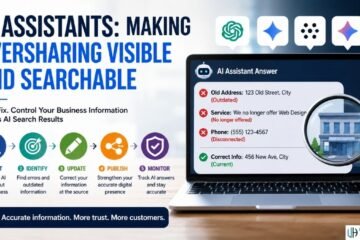

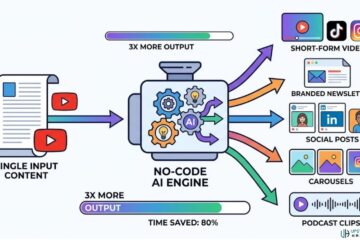






[…] use AI while reducing avoidable exposure. Before connecting tools to business accounts, use our AI automation security checklist for small businesses to review permissions, sensitive data, human approvals and […]